Hotel Lobby AI with Two Separate Photos
Use one portrait per performer and assign each person to a fixed side. Separate references help keep two identities from merging.
Watch the matching example
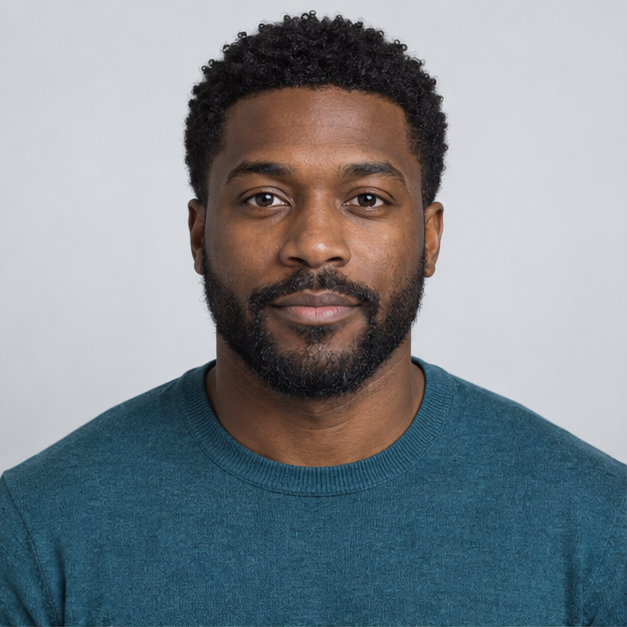 Photo 1 · Left
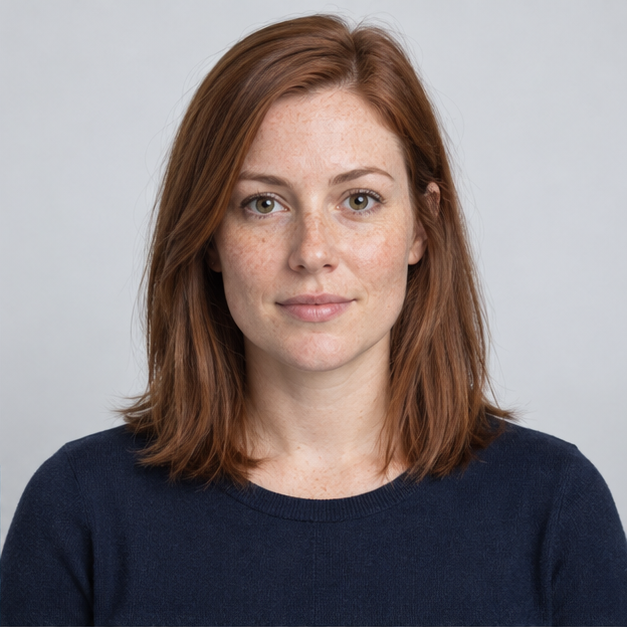 Photo 2 · Right
Keep left and right identities explicit
The left photo is the lead reference and the right photo is the second performer. Leave those assignments stable throughout a request. Two references describe two subjects; they are not first and last frames of a transition. Using the same photo twice is not a way to create two independent characters and is rejected by the submission flow.
Balance the two source portraits
Choose images with similar head sizes, camera angles and light direction. A tiny full-body person beside a tight face crop creates an avoidable scale mismatch. Crop both at roughly the shoulders, retain some space above the hair and avoid cutting through either chin. Separate photos can be taken in different locations; a matching background is less useful than two readable faces.
Diagnose face swapping
If identities exchange sides, simplify the input rather than piling on instructions. Remove lookalike clothing where possible and try less extreme face angles. Check the earliest moment the switch occurs. A repeatable swap during a head turn points to a difficult pose; a switch at the start points to ambiguous references. A new request can cost credits, so keep the failed task ID for support before retrying.
Prepare and submit your references
Select the matching template below, then choose one image for each slot. The local form accepts JPEG, PNG or WebP up to 10 MB each and checks that the browser can decode them. Use photos you are allowed to process. If a validation message appears, replace only the affected image; the other selection stays available. Before live generation, verify the displayed service settings and cost. Selecting a photo does not upload it. Sign in with a verified email and submit only after reviewing the displayed 20-credit generation cost.
Review the result before sharing
A successful job status is only the start of reviewing a performance. Play from the first frame to the end, check both identities during movement and listen with sound enabled. Confirm the file opens on your phone, and check the publishing platform’s current aspect ratio and AI disclosure options. Download only a completed file belonging to your account. A concept illustration or an external sample cannot establish the result of your request.
Performance direction
The left performer delivers a short original verse; the right performer reacts between lines. Keep their identities separate.
Troubleshooting
Use similar camera heights so neither performer appears much larger.
Frequently asked questions
Can I try this without uploading my photos?
Yes. You can select templates and prepare photos locally. In this build, disabled generation retains your selection and makes no provider upload.
Does this include a famous song or a cloned voice?
No. Neither selecting a template nor generating a performance grants a music license or promises a voice clone. Use original or properly licensed audio.
What should I change if the result is wrong?
Use similar camera heights so neither performer appears much larger. Identify the failure before starting another request; a retry may have a separate cost once live generation is enabled.
Related guides
How to Make a Hotel Lobby AI Video
Read as Markdown